Saturday, September 24, 2011

The problems with nvidia graphic cards made with nvidia optimus technology in Linux distributions!

0 comments

The problems with nvidia graphic cards made with nvidia optimus technology in Linux distributions!

 I recently bought a Acer 4750G laptop for my studies and for entertaintment of course! This laptop came with a nvidia GT540M GPU with nvidia optimus technology. This laptop has a second generation core i5 2410M processor. So it comes with a Intel HD3000 GPU too. Nvidia GPU is made for hardcore gaming and to manage HD content. While intel gpu is too capable of that nvidia does it better. You get what I mean right? 


What is nvidia optimus technology?

Laptops are made for portability.n So always product companies try to get best results with the battery life. Intel HD gpu consumes a little power and nvidia gpu consumes a lot of power. So always working with the nvidia gpu makes battery life to be weaker. So what this optimus technology does is switching two gpus when they want.

Ex:-
Working on documents, excel sheets – changes gpu to intel HD3000
Gaming – changes gpu to nvidia
HD video – changes gpu to nvidia
Operating system – changes gpu to intel HD3000

Conflicts with Linux systems

This is a great technology indeed. But the issue is this technology is not very well working with Linux distributions. Nvidia officials have said they have no idea to develop this software to linux distributions too. So what will happen will be both gpus will work when you boot with linux. Result will be a small battery life. Some laptops wont boot even. In my laptop Acer 4750G I tried to install linux ubuntu 11.04 natty narwhal but it doesn’t  gave me the chance to boot even to the install page. It gave me only a black screen. I waited about 30 minutes but nothing happened. This has happened to lot of people who bought laptops with nvidia optimus technology. By the way this technology works with windows 7 like a charm. I managed to code C++ in CodeBlocks software about 5 hours and 30 minutes with lowered brightness.
I checked some linux distributions with this laptop and results are –
Ubuntu 11.04 natty narwhal – Didn’t boot even. But managed to work with installed via WUBI and survived C++ coding in standard g++ compiler via terminal for about 3 hours..

Ubuntu 10.04 lucid lynx – Installed successfully. Initially gave me only a resolution of 1024 x 768 pixels. Then installed nvidia official linux driver and got the desired 1366 x 768 pixel resolution. ( its not a driver for optimus, but a driver to work that gpu with linux systems)


Linux arch ( kernel version – 3.0.3 ) – installed successfully.. when I installed gnome 3 gui in it all went to a black screen.  I think it can be corrected. As I’m not a genius in linux command line interface and linux arch I couldn’t get it worked yet. Big reason to worry. But I’ll do it in next week and update this post how to :)

I couldn’t check this with fedora or any other version as I couldn’t find any of them. If one of you have checked them with a nvidia optimus enabled computer please let us know. Do a comment explaining it. Thanks :)

Solutions for these problems!
    
Currently there are some solutions. One of them is Bumblebee for linux. And other way is switching off nvidia card manually, in the second way you wont get the optimus technology worked. But in bumblebee thing you will get it worked. As bumblebee is a beta testing software you can’t be assured of 100% stability. But it worth give a try. I didn’t installed bumblebee as I don’t need nvidia in linux as I don’t use linux for gaming. So simply switched it off.

Information about bumblebee and how to use it – Link
How to disable nvidia and other facts – official link

Conclusion

    This is indeed a great technology but sadly not for dual gpu systems. There are some laptops which we can choose what gpu to be enabled. In such laptops we have no issues. So if you are willing to use linux as a primary operating system and you depend on gui, afraid to deal with command line interface actions, I suggest you to move away from dual gpu systems. Or you can wait for till better solution comes or find a laptop with bios switch to enable one single gpu. That’s it… See ya later :D

Thursday, September 1, 2011

Apple iOS 4.3.5 review + Direct download links

0 comments
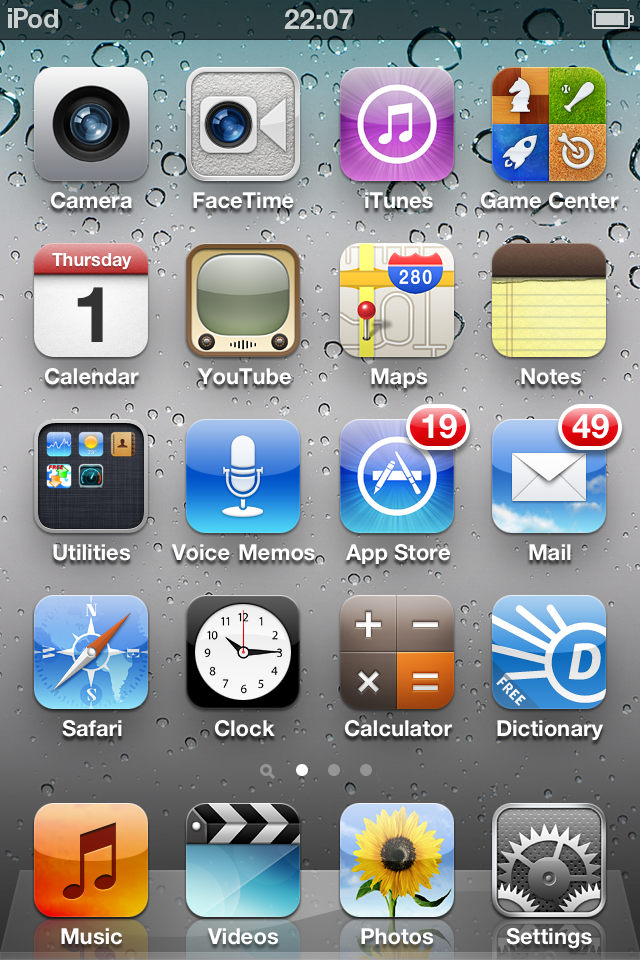
I was using my fourth generation iPod touch with iOS 4.2.1 for about 7 months now. I was having problems like malfunctioning apps, icon disappearing and so on. So I did a restore and upgrade to iOS 4.3.5 today. I know you guys have plenty of experiences, but I just thought to express it in my way ;)

    This software update costs 651MB and you can download them through iTunes so easily. But if you have no stable internet connection don't use iTunes download manager to download it. Instead use direct links from Apple web site. The links are shown below ;)

Download if you want to install. But there is a huge problem with this software update. That is there is no untethered jailbreak solution for this iOS 4.3.5 version. there's only a tethered jailbreak solution and it's from RedsnOw.. A tethered jailbreak means that you will need the access to a computer to switch on your iDevice after everytime you shut it down. Untethered jailbreak means that you wont need any computer access to boot up your iDevice.  So I recommend that carrier unlock dependants and jailbreakers must be away from this. I'm too a jailbreak type person , but I had to do this... :(


          As soon as I got this installed on my iPod touch I found out that " Facetime " logo has been changed to a new silver colour thing. I really loved the earlier green colour icon. And I didn't see any changes in other icons.


Music Player was just as usual...No specific changes at all... Just perfect <3


Gallery was the same.. No changes. Multiple selection is great when you go for an Air Print ;)


Multiple selection...


It's all about easy of use... Air Printing.. 


Voice over, Zooming and white on black options were in iOS 4.2.1 too... For those who don't know,

Voice over - Reads the icon when you touch it

Zoom - When you tap twice on the screen with two fingers it will zoom the screen in anywhere ;)

White on Black - Makes contrasting negative colours everywhere

And I wonder what the heck this Apple guys have added a "Mono Audio" option :o


My info page


There are not any big changes in this version. But one thing. I couldn't track my location in 4.2.1 and this does it like a charm. Looks like guys at Cupertino fruit company has fixed that great option... See you guys later.... I really love iOS <3

Saturday, August 27, 2011

Compiling Objective C inside Linux Ubuntu 11.04 Natty Narwhal! ( Guide to Installing and working with GNUSTEP )

16 comments

         As a very Apple addicted person I always wanted to learn developing iOS and Mac apps. When I got my first iPod touch last december I started to love it's operating system called iOS. And I was amazed by the iMacs and Macbook Pros in Apple stores but I couldn't buy one yet. You know, money matters :(   Even though I don't have a Mac to do iOS developing I wanted to do those stuff so badly. Objective C is used for that and I wanted to learn it so badly. But I couldn't as I had my high school exams. But finally last night i figured it out :D So if you are a person just like me, who have endless willings to learn iOS and Mac programming without a mac this is the place :)


            Objective C is used to make iOS and Mac apps. This language is derived from C language and this is a mid level object oriented programming language which was developed by Apple Inc. Prior experience with C++ or C will be a extra advantage. But it's not necessary. Objective C is currently compiled with xCode software in Mac Os X. But don't worry you can do it as this way too....   Okay let's get to work then.

You should have installed Linux ubuntu for this. I tried this via linux Ubuntu 11.04 - Natty Narwhal. But this should work with other versions too. Please kind enough to inform me if there's any problem with older versions. Well this guide consist of two steps. 1) Installing 2) Compiling ............. Let's do this :) Remember to enter your computer password whenever terminal requies it :D


                          Installing GNUSTEP in Ubuntu and getting it worked :)


1) Open the terminal. And enter below commands one by one. You should have a working internet connection dude :)

2) sudo apt-get -y install build-essential

3) sudo apt-get -y install gnustep

4) sudo apt-get install gobjc

5) sudo apt-get install gnustep-make

6) sudo apt-get install libgnustep-base-dev


Okay It's done.... Now you have successfully installed GNUSTEP in your computer. Well I know it took some long time to download it as it cost about 200MB :P But be happy you can run Objective C ! :D


                               Compiling a simple program with GNUSTEP !

1) Open the terminal.

2) Type gedit name.m

   Info - You should use the .m extension to compile Objective C programmes. If you use .txt it will be frikkin useless. And use your desired name in the "name" field. And use it by changing everywhere hereafter in my codes.


3) After you hit ENTER key after typing last code a Gedit text editor will be opened. As "Home" directory is the default in terminal this will be saved in "Home" directory...

4) Then type this simple sample code in that text editor. And then hit the " Save " button and close it ;)

 
#import <Foundation/Foundation.h>
int main (int argc, const char * argv[])
{
NSAutoreleasePool * pool = [[NSAutoreleasePool alloc] init];
NSLog (@"Objective C is great");
[pool drain];
return 0;
}


5) Now come back to the terminal and type-     . /usr/share/GNUstep/Makefiles/GNUstep.sh

   info - You should enter this code everytime you start a new terminal window. I know this is a disadvantage. But it does the job ;)


6) gcc `gnustep-config --objc-flags` -lgnustep-base name.m -o name

   info - Change the "name" field to the name of gedit file you created at first step!


7) ./name

   info - After hitting enter button you will get a phrase in the terminal saying " Objective C is great :D "


Congratulations dude,,,, You have just made your first effort a success in Objective C :)

AND FOR LEARNING OBJECTIVE C I recommend you the book " PROGRAMMIN IN OBJECTIVE C 2.0 by Stephen G. Kochan " .. I downloaded a copy from thepiratebay.org But I don't remember the link for that torrent. If you couldn't find any book and need a one so badly, just ask me and I'll upload it. :)


Any questions??? Feel free to ask ;)

Monday, August 22, 2011

Python Runtime files for Nokia Symbian Mobiles ( S60 v3 v5 )

0 comments


Have you ever wanted python runtime for your mobile? YES? No?  Well I wanted those softwares for two reasons.

1) Running python shell in my Nokia symbian mobile
2) To work with "WLaNFT" software
 

WLaNFT is a great software which will help you to transfer files between two Symbian mobile phones via WIFI... Well I'll tell about that software next time... ;)


Download Python Runtime for Nokia

How to download Torrents via Nokia symbian mobiles ( S60 v3 v5 )

44 comments


I my self own a Nokia E71-1. It's a business phone featured Sumbian 60 3rd version operating system. I always wanted to download movies but i had no access to a computer for last 5 months as I had some exams. So I googled hard enough and found this software and it helped me a lot to download many stuff.. This software supports almost every torrent format. So why don't you give a try? ;)

Download it now......


Friday, May 6, 2011

How to speed up your iPhone, iPod Touch, iPad with "Speed Intensifier"

23 comments
This is a another valueable tweak from the cydia appstore. For this stuff you'll have to jailbreak your iDevice.. I have mentioned about how to jailbreak guides on my previous posts.:)

This marvellous free tweak "Speed Intensifier" is from via the Insanelyi.com repository. By this you will gain an extra speed for your iPhone, iPod Touch or iPad:) it's a notably a speed gainer.. This will help you when running speed busting apps and games..

How to install..

1) Open Cydia

2) Add the source as "http://repo.insanelyi.com/" without quotes..

I have discussed how to add new source to Cydia app store.. See the post on AppSync on my blog..

3 ) Search for "Speed Intensifier" and install it. Open the app and enable the option..

4 ) Done.. Anything else to know? Post a comment.:)

Redsnow Untethered jailbreak for ios 4.3.3 for iPhone, iPod Touch and iPad

2 comments
The 4.3.3 untether works on all devices that actually support 4.3.3 except for the iPad2 :)

iPhone3GS
iPhone4 (GSM)
iPod touch 3G
iPod touch 4G
iPad1
AppleTV2G (v4.3 8F202)

Keep out of this if you want to unlock your iDevice.. Firmware preserving the modem baseband via tiny umbrella is not currently available..

1 ) Download iOS 4.3.3 and restore to your iDevice

2 ) Open downloaded redsnow and select the downloaded ios ipsw file

3 )Now select “Install Cydia ” and click “Next ”. Optionally you can also select any other option you like. (That I don't personally recommend)

4 ) Then you will guided to enter the your iDevice to the DFU mode.. Then it the jailbreak will be done.. So you can enjoy your favourite cocktail :D

You can download the REDSNOW version for both Apple mac os x or for windows xp.. For linux you have to wait for Greenpoison.:)

If unable to download from the official site to extream traffic or some error, post a comment. I'll add mirror link for you.:)

ENJOY.:)

Sunday, May 1, 2011

Untethered Jallbreak iOS 4.1 with greenpois0n for iPod Touch 2G, 3G, 4G, iPad 1G, iPhone 3Gs and iPhone 4

0 comments

DOWNLOAD GREENPOIS0N for iOS 4.1 iPod touch 2G, 3G, 4G, iPhone 3G, 3Gs , iPhone 4


This tool will help you to jailbreak your iDevice with iOS 4.2.1.. Follow the instructions when this software is opened..

Supported iDevices -

  - iPod Touch 2G (all bootroms)
  - iPod Touch 3G
  - iPod Touch 4G
  - iPad 1G
  - iPhone 3Gs (all bootroms)
  - iPhone 4

If you want to SIM Unlock, preserve your baseband using TinyUmbrella ...

A working internet connection and atleast windows XP will be needed ..

This is a simple how to guide for your jailbreak... ( I have mentioned what is jailbreaking in a previous post :)


  1. plug the device to your computer using the USB cable

  2. quit iTunes if it shows up

  3. start greenpois0n.app

  4. follow instructions

  5. the device will boot a 1st time with verbose text on screen. This operation will install the jailbreak on the device.

  6. the device will reboot normally

  7. start the Loader application (green icon on the SpringBoard), and follow instructions to install Cydia


Have Fun :D

Untethered Jallbreak iOS 4.2.1 with greenpois0n rc 6 beta 2 for Apple TV , iPhone 4 Verizone, iPod Touch 2G, 3G, 4G, iPad 1G, iPhone 3Gs and iPhone 4

0 comments


DOWNLOAD GREENPOIS0N RC6 B2 FOR APPLE TV AND VERIZONE IPHONE 4 


This tool will help you to jailbreak your iDevice with iOS 4.2.1.. Follow the instructions when this software is opened..

Supported iDevices -

  - iPod Touch 2G (all bootroms)
  - iPod Touch 3G
  - iPod Touch 4G
  - iPad 1G
  - iPhone 3Gs (all bootroms)
  - iPhone 4

If you want to SIM Unlock, preserve your baseband using TinyUmbrella ...

A working internet connection and atleast windows XP will be needed ..

This is a simple how to guide for your jailbreak... ( I have mentioned what is jailbreaking in a previous post :)


  1. plug the device to your computer using the USB cable

  2. quit iTunes if it shows up

  3. start greenpois0n.app

  4. follow instructions

  5. the device will boot a 1st time with verbose text on screen. This operation will install the jailbreak on the device.

  6. the device will reboot normally

  7. start the Loader application (green icon on the SpringBoard), and follow instructions to install Cydia


Have Fun!

Untethered Jallbreak iOS 4.2.1 with greenpois0n rc 5 beta 2 for iPod Touch 2G, 3G, 4G, iPad 1G, iPhone 3Gs and iPhone 4

17 comments

DOWNLOAD GREENPOIS0N rc5 Beta2

This tool will help you to jailbreak your iDevice with iOS 4.2.1.. Follow the instructions when this software is opened..

Supported iDevices -

  - iPod Touch 2G (all bootroms)
  - iPod Touch 3G
  - iPod Touch 4G
  - iPad 1G
  - iPhone 3Gs (all bootroms)
  - iPhone 4

If you want to SIM Unlock, preserve your baseband using TinyUmbrella ...

A working internet connection and atleast windows XP will be needed ..

This is a simple how to guide for your jailbreak... ( I have mentioned what is jailbreaking in a previous post :)


  1. plug the device to your computer using the USB cable

  2. quit iTunes if it shows up

  3. start greenpois0n.app
 
  4. follow instructions

  5. the device will boot a 1st time with verbose text on screen. This operation will install the jailbreak on the device.

  6. the device will reboot normally

  7. start the Loader application (green icon on the SpringBoard), and follow instructions to install Cydia


Have Fun ;)